Surfing the Sound: Using Peakmap in ZGameEditor Visualizer
How I combined a surfer image, Peakmap, and a moving wave to create music-reactive visuals that support my new dance track.
Music Visualization and ZGameEditor Visualizer
Since getting back into music production a few months ago, I’ve been exploring how to share my tracks. YouTube is one option I’ve been spending time with. Its potential audience is substantial: DataReportal’s 2026 update reports that YouTube ads reach 2.65 billion users each month. That is an advertising-reach estimate, not a count of unique monthly active users. Source: DataReportal.
A static image is enough to put a track on YouTube, but I wanted the visuals to participate in the listening experience. Music visualization can make listening more engaging and give people a reason to choose YouTube for the visuals. For this project, that meant an image changing with the music instead of staying fixed throughout the track.
ZGameEditor Visualizer is a visual effects plugin in FL Studio that can render its output as a video. It combines layers of imagery and effects, some of which respond to audio. You can look at the Image-Line manual for more details.
You don’t need to use FL Studio to follow the idea behind this project. The useful question is what a visual can add to your track. Here is how I approached that question with a surfer and a moving wave.
Imagining a Surfer Inside the Music
For my new track Shake Out!, I imagined a surfer in the middle of the screen, riding in front of large waves. The track made me think of water, probably because of the heavy use of noise throughout it. I wanted to turn that association into something visible.
The scene needed a moving background, with the surfer responding to the track in front of it. I used Youlean Tunnel with a water image for the background and Peakmap for the surfer. Together, they gave me a way to connect the imagined scene to the sound.
I think of this as music-reactive rather than interactive: the track drives the image, not the viewer. That distinction matters because the visual is part of the arrangement’s presentation. When the music becomes calmer, the image can feel different without asking the listener to do anything.
Making the Surfer React with Peakmap
I started by loading this PNG into Peakmap as its image source:

In my setup, Peakmap’s Audio Source is Master, and its Data Mode is Spectral. In plain language, I wanted the image to respond to the track’s frequency content. I got the desired reaction immediately after loading the surfer into this setup.
The clearest difference is between a passage with the kick and a calm passage with no beat or bass. When the kick appears, the blue areas across the surfer and board become fuller and more prominent. In the calm passage, the figure looks less filled in, and more of the water behind it shows through.
That contrast is what made the effect work for me. The surfer remains the subject, but its presence changes with the music. It feels connected to the track instead of being a picture placed over an unrelated animation.
Using Spectral mode was enough to create a clear visual distinction between the track’s peak moments and its calmer passages.
If you’re trying a similar idea, compare a busy passage with a quieter one before judging the result. A visual that looks good during the beat should also make sense when that beat disappears. For my scene, the less prominent surfer during the calm section was part of the appeal.
Bringing the Scene Together with a Wave, Mask, and Buffer
For the moving background, I used this water texture with Youlean Tunnel:

The background supplied the ongoing wave behind the surfer. Peakmap supplied the musical response in the foreground. Keeping those jobs separate helped me think about the scene: the water established the setting, while the surfer made the changes in the music visible.
There was a problem to work around. After I added Peakmap, unwanted straight lines appeared on the right side. I used Youlean Mask and a buffer to deal with them, then brought the result back through Youlean From Buffer.
Here is the mask image for this post:

The layers in my patch run from left to right in this order.
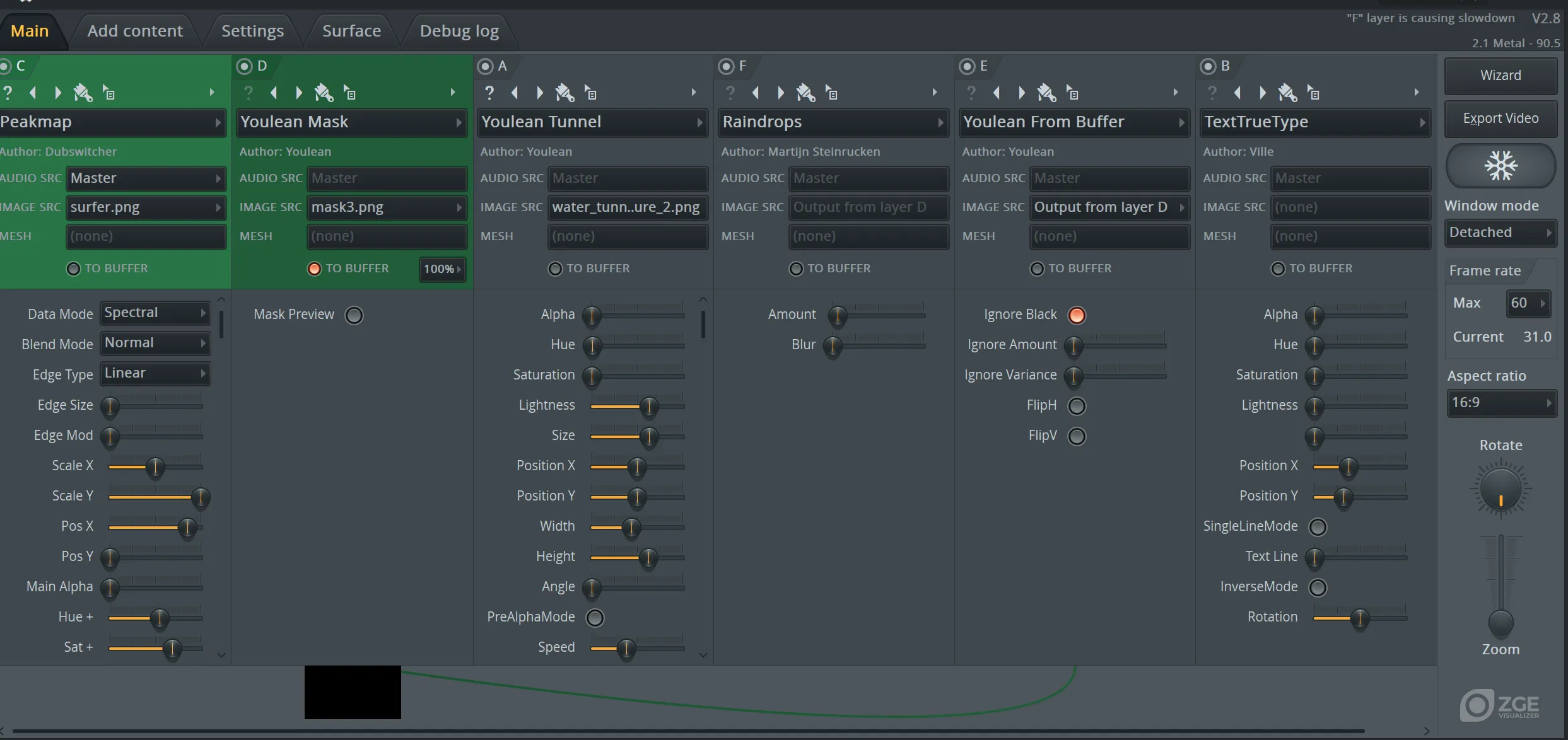
| Layer | Effect | Role or setting in my patch |
|---|---|---|
| C | Peakmap | Surfer image, Master audio source, Spectral mode |
| D | Youlean Mask | Masked foreground, with To Buffer enabled |
| A | Youlean Tunnel | Moving background using the water texture |
| F | Raindrops | Additional effect for the scene |
| E | Youlean From Buffer | Image source set to Output from layer D |
| B | TextTrueType | Final text layer |
Why does the foreground appear first? ZGameEditor Visualizer normally builds its composition from left to right, but To Buffer stores the accumulated image and lets the next layer start with a clean image. A later layer can use that stored result as its image source. Source: Image-Line manual.
In this patch, the buffered result is the masked surfer. Youlean Tunnel follows it, and Youlean From Buffer later brings the foreground back into the composition. My Youlean From Buffer layer points to the output of layer D, with Ignore Black enabled. That explains how the surfer can sit in front of the wave even though Peakmap appears earlier in the layer order.
I also added Raindrops for extra visual texture. The main idea still rests on the relationship between the surfer and the track. More effects aren’t the goal; a response that fits the music is.
For me, creating supplementary art is a way to deepen engagement with the main artwork: the track. The water came from an association I already heard in “Shake Out!”, and Peakmap let that association respond to the music. That’s what I want to carry into future visualizations: a visual idea that grows out of the track and gives the listener another reason to stay with it.
You can also listen to “Shake Out!” on SoundCloud.
References
- My music video
- ”Shake Out!” on SoundCloud
- Image-Line: ZGameEditor Visualizer manual: plugin overview, layer order, and buffer behavior. Peakmap-specific observations come from my setup and examples.
- DataReportal: Global social media statistics: 2026 update reporting YouTube’s monthly advertising reach of 2.65 billion. Accessed September 17, 2026.